2026-2027 College Catalog 2026-2027 College Catalog |
|
  
The Modern Campus Academic Catalog contains everything you need to know about our programs and courses. In addition, you’ll find helpful information about admissions and registration, student services, tuition and fees, academic requirements, and more.
Effective Fall 2026, Spring 2027, and Summer 2027
Mission Statement
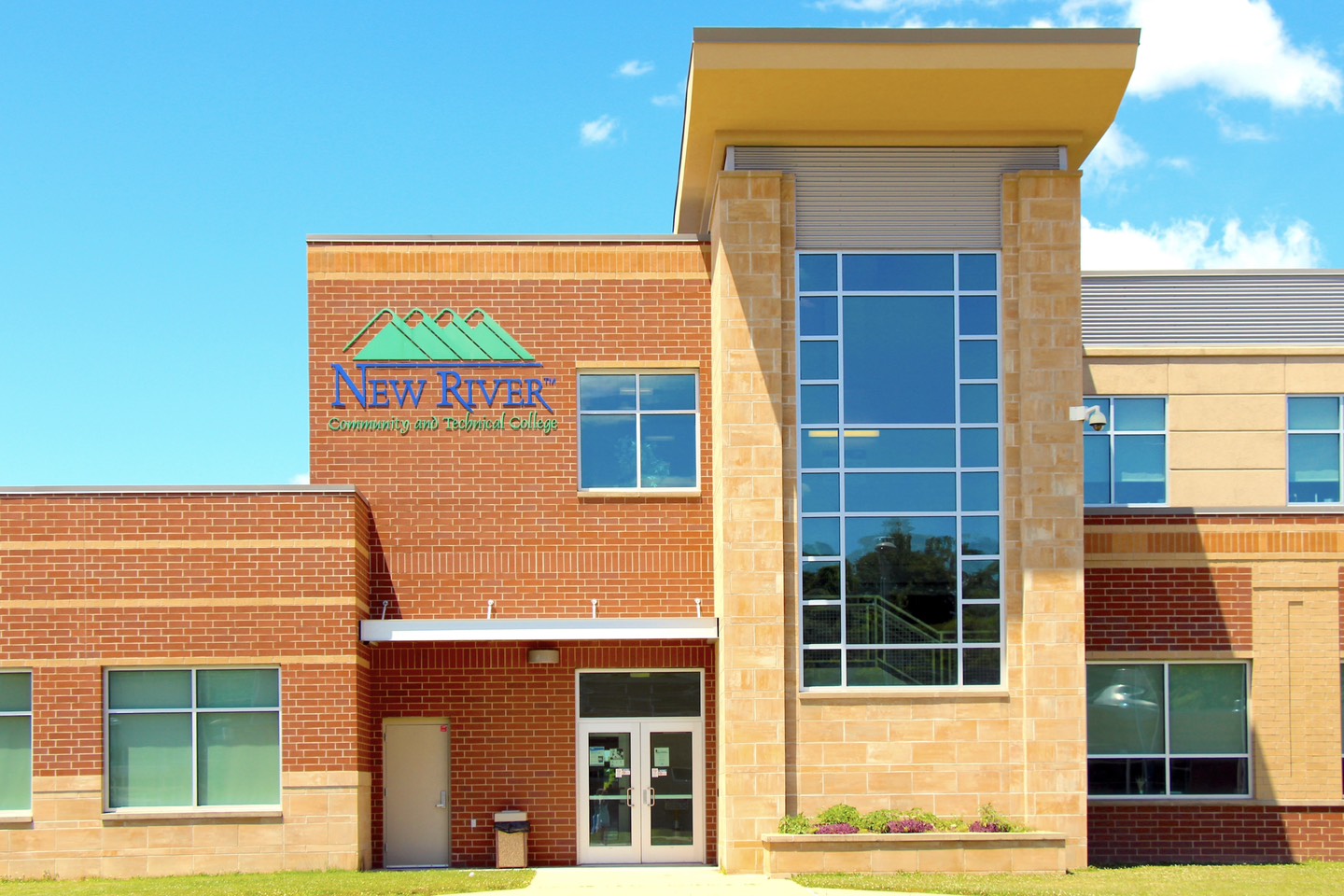
New River Community and Technical College provides accessible, affordable, quality education and workforce programs to meet the needs of the region it serves.
The information contained in this catalog is, to the best of knowledge of New River Community and Technical College, correct and complete at the time of publication. However, this catalog should not be considered a contract between New River Community and Technical College and its students. Failure to read this catalog does not excuse students from the regulations and requirements described herein.
Three ways to locate information
#1: Type what you are looking for in the “Catalog Search” box, located at the top left of this page.
#2: Click on “Advanced Search” to look for specific courses and/or programs.
#3: Choose from the navigation bar along the left side of the page.
Degree Planner
The Degree Planner link allows you to see, save, and/or print all the information about your program of study in a condensed, printable format. To access, simply navigate to any program and click the Degree Planner link at the top right of the page.
Create Your Personal Portfolio
The My Portfolio feature allows you to save information in your own personal folder so you can go directly to it!
Click on the My Portfolio link at the bottom of the left navigation bar.
If you are a new user, click Create an Account. You’ll type your email address and a password. If you choose not to create an account, your information will only be saved until you close the catalog.
Then use the left navigation bar or the search box to find what you are looking for in the catalog.
When you want to save a section, click the My Portfolio link at the top right of the page.
The next time you go to your portfolio, your saved material will be there!
Need help?
If at any point you have questions about how to navigate this catalog, just click on the Help link at the top right of the page.
|